

XInput vs DirectInput Controller: PC Compatibility Guide
By Aisha El-Sayed • 16th Nov
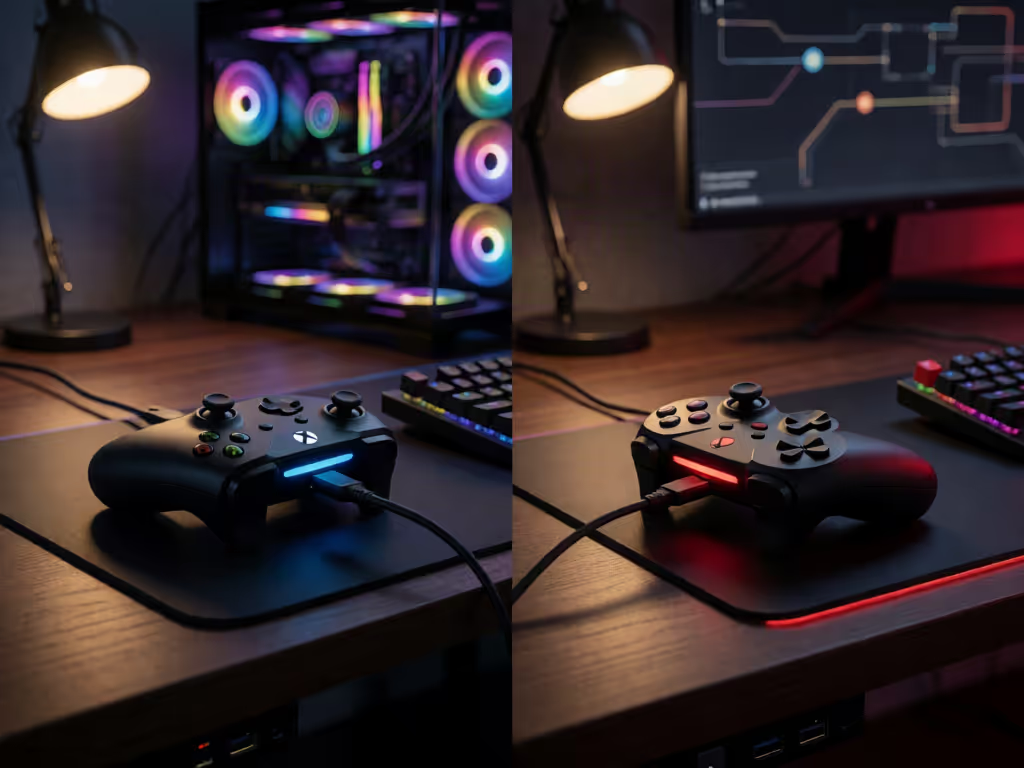
Quick verdict
Quick verdict: Choose XInput when a PC game expects a standardized Xbox-style controller path. Choose DirectInput when the game or specialized device needs broader, more flexible input. Neither is universally better: compatibility depends on the game, the controller’s active mode, and any mapping layer such as Steam Input.
- Choose XInput if: The game specifically supports an XInput-compatible gamepad and your controller offers that mode. Its standardized layout may require less manual binding.
- Choose DirectInput if: The game or peripheral calls for it, especially with traditional or specialized devices. Be prepared for generic buttons or axes that require individual assignment.
- Main trade-off: Windows detecting the controller does not prove that a game supports its current profile.
Important: Steam Input can translate or remap controls, but native and legacy bindings differ by game; duplicate input is possible when native and emulated outputs are both read.
The XInput vs DirectInput controller question is less about which label is "better" and more about whether your controller input modes match what a particular PC game can understand. A controller can connect and register presses in a test window yet still fail in-game. That is frustrating, especially when you only want a reliable gamepad for PC gaming that lets you settle into a long session, not wrestle with settings.
EasySMX describes XInput and DirectInput as Windows input APIs: routes games use to receive controller commands. The useful takeaway is simple: the game, the controller's active profile, and any mapping layer between them all need to agree—our XInput vs DirectInput setup guide explores that compatibility process in more detail.
Compatibility is not a single controller trait. It is a match between a device, its current mode, and one game's input support.
The short answer: XInput is standardized; DirectInput is flexible
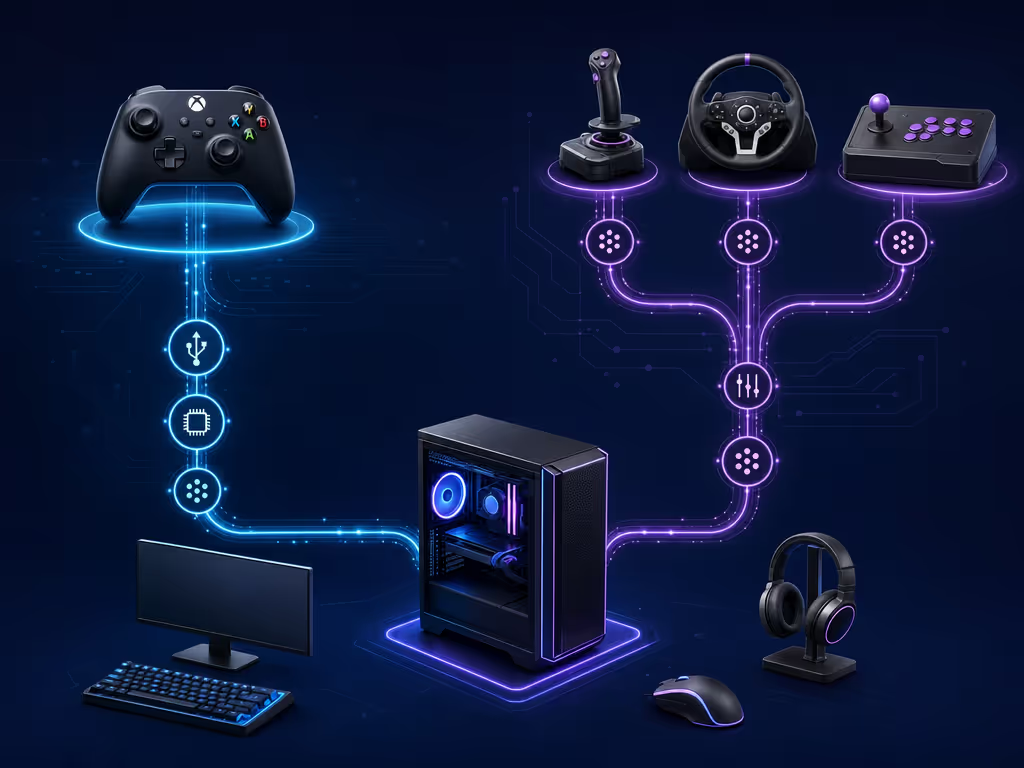
According to EasySMX's controller compatibility guidance, XInput uses a standardized Xbox-style gamepad layout. A game built for that layout can expect familiar controls: two sticks, a D-pad, ABXY face buttons, shoulder buttons, separate triggers, and vibration support.
DirectInput is an older, more flexible Windows input path. It can accommodate conventional gamepads along with specialized devices such as joysticks, wheels, throttles, and arcade controllers. The tradeoff is that a game may encounter buttons and axes as generic numbered inputs that require individual assignment.
That does not make DirectInput defective or XInput universally superior. It means the standardized XInput layout can be easier for a game to recognize automatically, while DirectInput can be useful where a game or peripheral expects its broader, less prescriptive structure.
What this looks like in an actual game
A game that supports your controller's active XInput profile may display recognizable gamepad actions with little or no setup. A game reading a DirectInput-style profile may instead ask you to bind inputs one by one, or label them as Button 1, Button 2, and Axis 3.
The key variable is the game's supported input system and device profile. Do not use a game's release date as a verdict. A newer title can have narrow controller support, and an older one can be perfectly happy with a particular profile.
HID is the device description, not a compatibility guarantee
You may see your controller listed as an HID game controller. HID (Human Interface Device) is a specification for peripheral user-input devices connected through USB or Bluetooth. Gamepads, joysticks, and racing wheels commonly use it, including many Bluetooth controllers and cross-platform setups.
HID tells software how a device reports controls. Each HID has a descriptor that lists controls, data ranges, and usage information. But raw descriptors do not always provide the tidy, universal meaning players expect from button labels.
Unity's Input System documentation offers a helpful developer-side example: when it has no known layout for a HID, it auto-generates a best-effort layout. That interpretation can be ambiguous; a D-pad direction or individual button's intended meaning may need to be guessed.
So treat an HID listing as evidence that the computer can communicate with the controller, not proof that every game will interpret it correctly.
Fit check: separate detection from game support
Before buying replacements or changing a dozen settings, ask these questions:
- Does the controller register basic presses? That establishes a basic connection and input response.
- Does the problem happen in one game or across several? One-game failure points more toward that game's supported input path or configuration.
- Is the issue missing inputs, wrong mappings, or doubled inputs? Those are different problems and deserve different tests.
- Did you change controller mode while the game was running? Some games detect controllers at startup.
This saves money and avoids the classic spiral of blaming a controller that may simply be speaking the wrong language for one title.
Where Steam Input fits into controller compatibility
Steam Input controller compatibility adds another layer: configurable mapping between your physical device and the game. Valve's Steamworks documentation distinguishes between native bindings for games that expose actions through the Steam Input API and legacy bindings for other games. Those approaches can also be mixed in games with native support.
That matters because a Steam layout may show game actions rather than literal physical-button names. If you want to compare the software layers behind remapping and controller profiles, see our controller customization software showdown. It can also map an input source in different ways depending on the selected mode.
EasySMX notes that Steam Input can present a physical controller as an Xbox-style device or map controls to keyboard and mouse commands. This can be valuable when the game does not understand the controller's current profile directly. But it creates another possible mismatch: duplicate input can occur if a game reads both the controller's native input and an emulated Steam Input output.
Use symptoms as data, not as a reason to panic
A few patterns can narrow the next step:
- The controller works in a test but not in one game: investigate that game's controller support and the current controller mode.
- One press produces two actions: consider whether the game may be seeing native and emulated input together.
- Controls are recognized but mapped strangely: you may be dealing with generic HID-style interpretation or a profile the game does not automatically label.
- A Steam layout shows actions instead of A/B/X/Y-style labels: that can reflect native Steam Input actions rather than a fault.
Avoid changing everything at once. Change one layer, retest, and keep the configuration that produces a clean result.
A practical troubleshooting sequence
When Windows recognizes the controller but your game does not, work from the least disruptive check to the most specific one.
1. Confirm the game's controller support
Check the game's settings or support information. The central question is whether the game supports a controller, and which input path or profile it expects, not whether the operating system sees the device.
2. Check basic input response
EasySMX recommends opening the Windows Game Controllers properties panel through joy.cpl and checking button, stick, and trigger response. This is a useful basic-input test, but it cannot confirm that a particular game supports the controller's current mode.
3. Identify the controller's available modes from its own manual
If your controller has mode-switch controls, consult the manual for your exact hardware. Do not borrow a button combination from a forum post or another controller.
4. Change one mode only if your controller supports it
If the manual offers XInput and DirectInput, choose the mode that best matches the affected game's support guidance. After changing it, EasySMX recommends closing the game, reconnecting the controller or receiver, and relaunching the game, since many titles detect devices only during startup.
5. Revisit Steam Input as a separate layer
If you are using Steam Input, inspect the active layout and test again with one deliberate change. Do not assume Steam Input is automatically the cause or automatically the cure; its native and legacy bindings can behave differently depending on the game.
Which mode should you choose?
Choose based on the game's supported input path, not a blanket hierarchy.
- Choose XInput when the game expects an Xbox-style XInput-compatible gamepad and your controller offers that mode.
- Try DirectInput when a game, specialized application, or controller documentation calls for it.
- Use Steam Input when its configurable bindings solve a recognition or mapping problem, but test for clean, single input afterward.
For Valve's documented legacy bindings, XInput-button bindings work with XInput-gamepad-compatible games. That is a specific limitation of those legacy bindings, not a rule that every PC controller setup must use XInput.
Your hands, your rules, but give the game a clear input path first. A stable configuration means less troubleshooting and more attention available for the part that matters: playing well.
Frequently asked questions
Is XInput necessary for PC gaming?
For a particular setup, check whether the game supports your controller's active input path. Valve notes that its legacy Steam Input bindings assigned to XInput buttons work with XInput-gamepad-compatible games; other controller support depends on the game's supported input systems and device profile.
Is XInput or DirectInput better?
Neither wins in every situation. XInput's standardized Xbox-style layout can simplify automatic recognition in games that support it. DirectInput's flexibility suits a broader range of traditional and specialized controllers. The better choice is the one the game and your controller's supported mode can use cleanly.
How do I change XInput to DirectInput?
There is no safe universal button combination. Check the manual for your exact controller to see whether it supports both modes and how it switches them. If you change modes, close the game, reconnect the controller or receiver, then relaunch before testing.
Keep exploring, one layer at a time
If a controller works in basic testing but not in a game, resist replacing it immediately. Start with the game's controller support, verify the active controller mode from the exact manual, then examine Steam Input only as needed. That methodical approach turns a vague compatibility failure into a short list of testable causes; for broader buying and setup advice, see our best PC gaming controller guide.
Related Articles


