Retro USB Controller Guide: XInput vs DirectInput for PC
By Ravi Menon • 15th Oct
Quick verdict
Quick verdict: this guide does not rank XInput and DirectInput universally for a retro USB controller.
- Choose direct input first if: Your priority game or emulator detects the d-pad and required buttons correctly. Fewer translation layers make the mapping easier to verify.
- Test Steam Input's Xbox-style presentation on Windows if: You want to compare direct behavior with Steam Input Gamepad Emulation's Xbox-controller presentation. Test the exact Steam-based setup rather than assuming it will work elsewhere.
- Main trade-off: On Windows, Steam Input Gamepad Emulation presents an emulated Xbox controller but may duplicate controls or make physical labels differ from on-screen prompts. Check every action in the target game, then separate mapping problems from latency claims.
Important: A Windows controller-properties check confirms changing buttons and axes, but that result alone does not establish end-to-end game latency. Polling rate alone cannot establish how fast a controller feels in a particular game.
If you plan to use a retro USB controller on a PC, its labels do not tell you exactly how every game will read it. For a retro game controller on PC, the useful XInput vs DirectInput question is not "which protocol wins?" It is: will this controller produce the intended action, with stable inputs, in the game you actually play? That is a testable question, and it helps you avoid buying around assumptions.
Here is the practical difference: Steam can translate controller input into a form a game understands, while the documentation for one USB HID gamepad example shows that input interpretation and button ordering can vary by host device. Treat compatibility as a workflow to verify, not a logo to trust.
The practical comparison: direct recognition versus Steam translation
For this guide, use "DirectInput" as the label you may see associated with a controller’s direct PC behavior, and "XInput" as the Xbox-style controller presentation a game may expect or display. The evidence that matters is narrower than many online compatibility charts suggest.
When the controller is read directly
The documentation for one USB HID gamepad example says input interpretation depends on the host device and button ordering may differ between devices. It also warns that some buttons or axes may be disabled or missing on certain host devices. In practical terms, verify the controls you need on your intended setup rather than assuming a printed layout determines the mapping.
This is why printed button legends are not proof of an in-game mapping, a distinction worth remembering when comparing modern retro-style controllers. A physical button marked "A," for example, is a label; what matters is the action registered by the game.
Direct recognition is therefore the lower-layer test:
- Does every required button register?
- Does the d-pad register in the directions your game needs?
- Are any inputs stuck, doubled, or missing?
- Does the target game let you assign the action you want to each physical control?
If those answers are yes, record the mapping for that setup before deciding whether any translation is necessary. Do not change your setup merely because a controller is described online with a different input label.
How Steam Input presents the controller
Steam Input is a Steam controller tool that can translate a controller's input through gamepad emulation, mouse-and-keyboard emulation, or the Steam Input API. On Windows, Steam documents that its overlay can hook XInput, DirectInput, RawInput, and Windows.Gaming.Input while providing gamepad emulation.
On Windows, the emulated controller in this gamepad-emulation mode appears to the game as an Xbox controller.
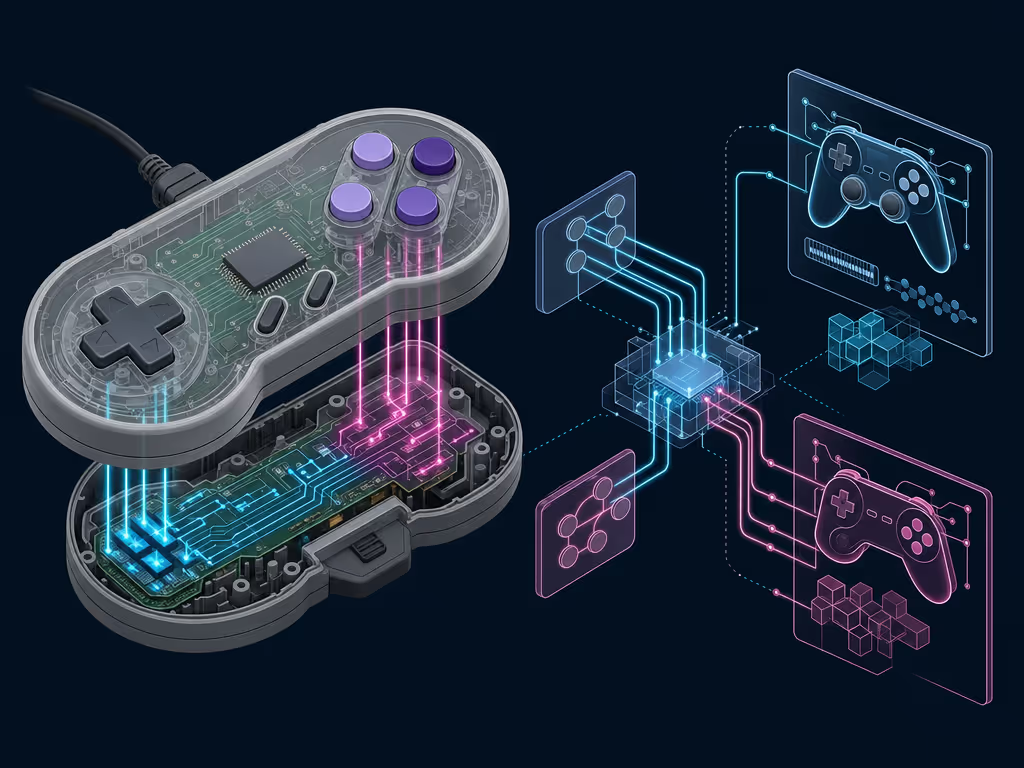
The trade-off is mapping clarity. Steam's documentation notes that inputs beyond the available Xbox-style controls can be duplicated onto available controls. Its example maps two distinct physical controls to the same emulated Start input. So Xbox button prompts on screen may be useful shorthand, but they are not a guaranteed one-to-one diagram of your controller.
Verify the action, not the icon.
Steam Input also provides functions that allow software to query a controller type and obtain device-specific glyphs. This is an implementation capability, not a guarantee about the prompts a particular game will show. On Windows, Steam Input Gamepad Emulation presents the emulated controller as an Xbox controller, but prompts and physical controller labels may not correspond one-to-one.
A decision framework for your retro controller
Do not choose a mode based on nostalgia, forum consensus, or an unverified claim that one input path is universally better. For broader PC compatibility, driver setup, and platform-specific buying considerations, see our PC gaming controller guide. Choose based on observed mapping behavior.
Use direct input first when mapping is already correct
Start with the controller connected normally and test it in the game or emulator you plan to use. If the d-pad, action buttons, and any needed shoulder buttons register correctly, record that mapping before making any changes.
This route is especially sensible for a simple retro controller whose control set closely matches the game. Fewer required translations means fewer places for an accidental duplicate or misassignment to hide.
Test Steam Input's Windows presentation separately
On Windows, Steam Input's gamepad emulation presents the emulated controller to the game as an Xbox controller. To compare that presentation with direct behavior, test one change at a time: enable the translation layer, launch the same game, and repeat the exact mapping check.
Do not assume this behavior transfers to every launcher, emulator, non-Steam app, or Windows game. The documented Xbox-controller presentation applies to Steam Input Gamepad Emulation on Windows. Your job is to validate the exact path you will use on game night.
Be careful with extra controls
Steam Input's Xbox-style emulation may not keep every physical control distinct. Before committing to a configuration, identify the game's non-negotiable actions: confirm, cancel, menu, shoulder actions, triggers, stick clicks, and pause.
Then map those actions deliberately. If two physical buttons trigger the same in-game action, that may be an intentional translation choice, not a faulty controller. It is still a problem if it costs you a needed command.
Test mapping before you troubleshoot performance
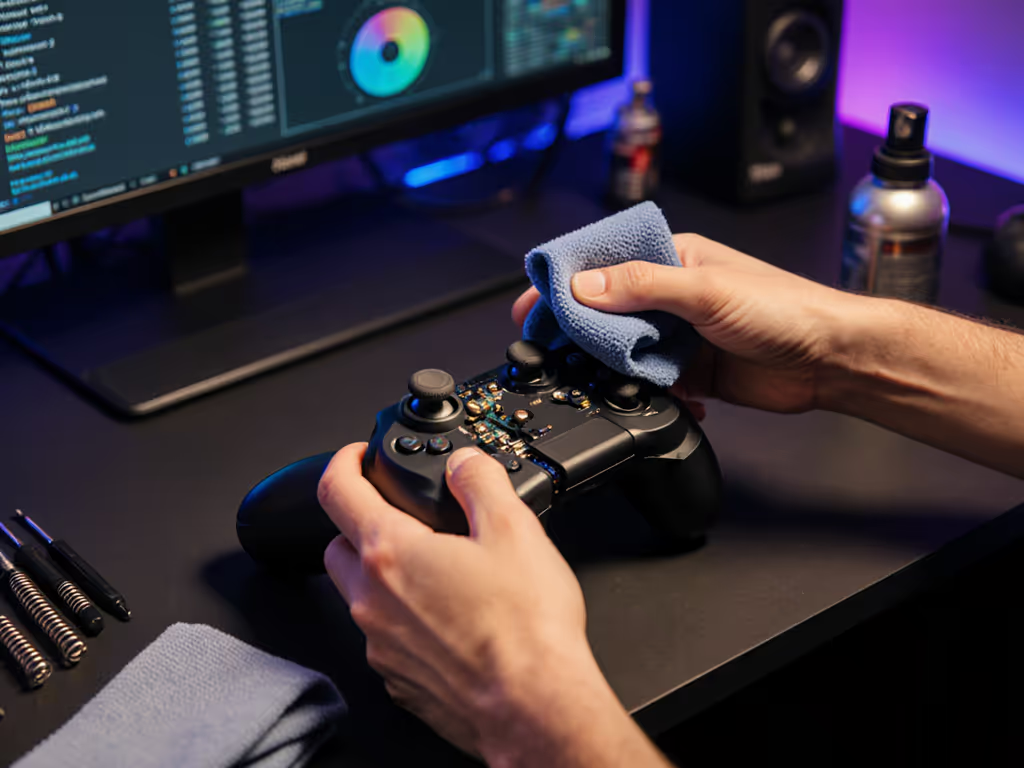
A controller properties window in Windows can provide a basic signal check: buttons and axes should change as you press or move them. The documented route for one USB HID gamepad example is Control Panel > Devices and Printers > the HID device > Game Controller Settings > Properties. Windows layouts can change, so use the closest available controller test panel on your system.
Use this check to see whether the PC is receiving changing inputs. Do not treat that observation alone as an end-to-end game-latency result.
Use these checks:
- Connect the controller directly to the PC and open a controller test view.
- Press each button once and confirm that it changes state only while held.
- Sweep every available axis and check that it returns to its expected rest position.
- Test the d-pad in the target game or emulator, not only in the Windows panel.
- Bind actions in the target application, then restart the game and repeat a short in-game test.
- If behavior is wrong, change one layer only (for example, test Steam Input), then rerun the same checks.
These checks confirm changing button and axis states and let you verify action assignments in the target application before turning to performance questions.
Polling rate: useful metric, incomplete answer
Polling rate is how many times per second a controller reports its current state to a computer or console. As a simple conversion, a reported 250 Hz update rate means one update every 4 milliseconds.
That is helpful context, but it is not a complete latency result; our guide to controller technology and input lag explains why multiple hardware and software stages matter. Response time also includes transmission delay, the game's input processing, and display frame timing. A polling-rate figure cannot, by itself, prove that one USB retro controller feels faster in a specific game.
A browser-based controller tester can be useful for observing live input and timing information without installing software. Treat it as a diagnostic observation, not a controlled end-to-end benchmark. Compare repeatability: does the controller show stable behavior across repeated presses, or do you see inconsistent registration? Numbers aren't everything, unless they change how the game feels.
What to verify before keeping a retro USB controller
Your final checklist should be tied to your library, not to broad compatibility claims:
- Game recognition: Does each priority game see the controller?
- Action mapping: Are confirm, cancel, menu, and gameplay actions where your hands expect them?
- D-pad behavior: Does it produce clean directional input in the game that matters?
- Input stability: Are there any unexpected presses, missed presses, or disconnects during repeated testing?
- Steam behavior: If you use Steam Input, do the translated controls still cover every required action?
Make the compatibility decision with evidence
This guide focuses on mapping rather than a universal XInput-versus-DirectInput ranking. Use the mapping check in your chosen game before deciding whether to keep the direct setup or test Steam Input's Windows presentation. On Windows, Steam Input's gamepad emulation can separately be tested as an emulated Xbox-controller presentation.
Your actionable next step: pick one game you play weekly, check the controller's inputs and record the working mapping before changing anything else. Use that recorded mapping to decide whether to keep the direct setup or test Steam Input's Windows presentation.
Related Articles