Best Multiplatform Controller With Back Buttons for Lag-Free Play
By Aisha El-Sayed • 11th Oct
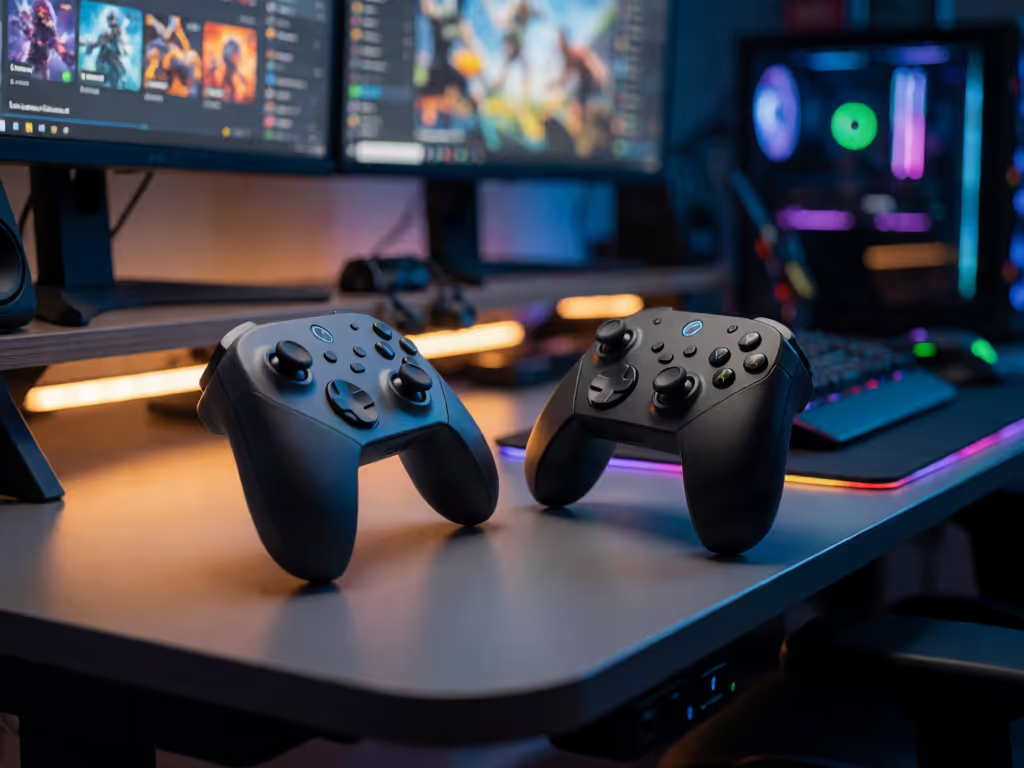
At a glance
The GuliKit KK3 MAX is the strongest overall choice if you need confirmed rear paddles alongside manufacturer-listed support across Windows, Switch, Switch 2, Android, and iOS.
- Best overall: The KK3 MAX has four detachable, swappable, remappable metal rear paddles, while its manufacturer lists broad platform coverage in this comparison. View on Amazon
- Best for PC responsiveness: The Ultimate 2C Wireless has lower reported cable and dongle stick-latency figures, but its L4/R4 controls are described as bumpers, not confirmed rear paddles.
- What decides it: Do not treat either 1000Hz claim as a promise of lag-free play.
Important: Platform coverage and control layout should be checked against your actual devices and grip before buying; Switch, iOS, Steam Deck, and macOS support is not established for the exact Ultimate 2C model here.
Finding the best multi-platform controller with back buttons means separating two needs that are often mashed together: genuine rear controls for keeping your thumbs on the sticks, and a connection that responds consistently. If you need confirmed rear paddles as well as manufacturer-listed PC and Switch support, the GuliKit KK3 MAX is the clear fit from this comparison. If your priority is the lower available stick-latency figures for a Windows/Android controller, the 8BitDo Ultimate 2C Wireless is the more compelling performance-focused option, but its L4/R4 controls are not confirmed as rear buttons, and its Switch support is not established here.
One important reset before you buy: no controller can promise truly lag-free play. A 1000Hz controller specification describes a claimed update rate, not a guaranteed end-to-end latency result. Your game, display, connection mode, and the controller's own processing all matter. Let's choose based on the platforms you actually use, the controls you need to reach, and evidence that goes beyond a headline number.
Step 1: Decide whether you need real rear paddles or simply extra remappable controls
This is the decision that narrows the field fastest. If you are comparing competitive features such as paddles, trigger locks, and remapping, our tournament controller features guide explains how these controls affect real-world play.
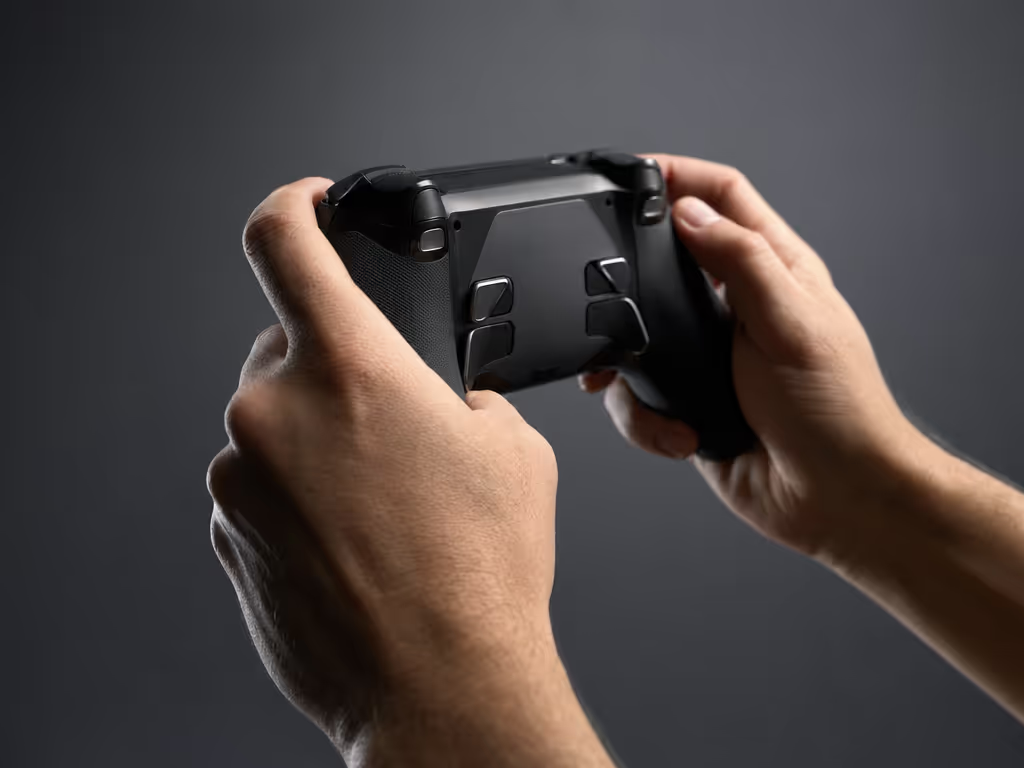
Rear paddles sit on the back shell, where one or more fingers can press them without leaving the sticks. That layout can be helpful when a game asks you to jump, reload, crouch, or use an ability while aiming or moving. Extra controls placed elsewhere can still be useful, but they do not solve the same thumb-placement problem.
The short answer
- Choose the GuliKit KK3 MAX if four detachable, swappable, remappable rear paddles are non-negotiable.
- Treat the 8BitDo Ultimate 2C Wireless carefully if physical rear buttons are your must-have feature. It has remappable L4/R4 bumpers, but the available information does not confirm that they are rear-mounted paddles.
That distinction is not nitpicking. It determines whether you can use your existing grip and reach pattern, or whether you will still need to shift a thumb off a stick at the wrong moment.
Comfort buys consistency. A control you can technically reach but repeatedly strain to reach is not a performance upgrade.
A quick hand-and-grip fit check
Before ordering, take 30 seconds with your current controller and mimic the way you would use rear controls:
- Keep both thumbs on the sticks.
- Curl your middle and ring fingers toward the rear shell without tightening your palms.
- Notice whether your wrists stay neutral rather than bending outward or inward.
- Ask which fingers naturally want to do the work. Do not force a "pro" grip that creates pressure in the thumb base or wrist.
- Plan to start with one or two mapped actions, not four, so your hands can adapt gradually.
If you experience numbness, tingling, or persistent pain, pause rather than training through it. This is not medical advice, but it is a useful controller-fit boundary: if it hurts, it's costing you frames and fun.
Step 2: Match the controller to your actual platforms
"Multiplatform" is only valuable when it covers the devices on your desk, television stand, and travel bag.
GuliKit KK3 MAX: the platform-spanning choice
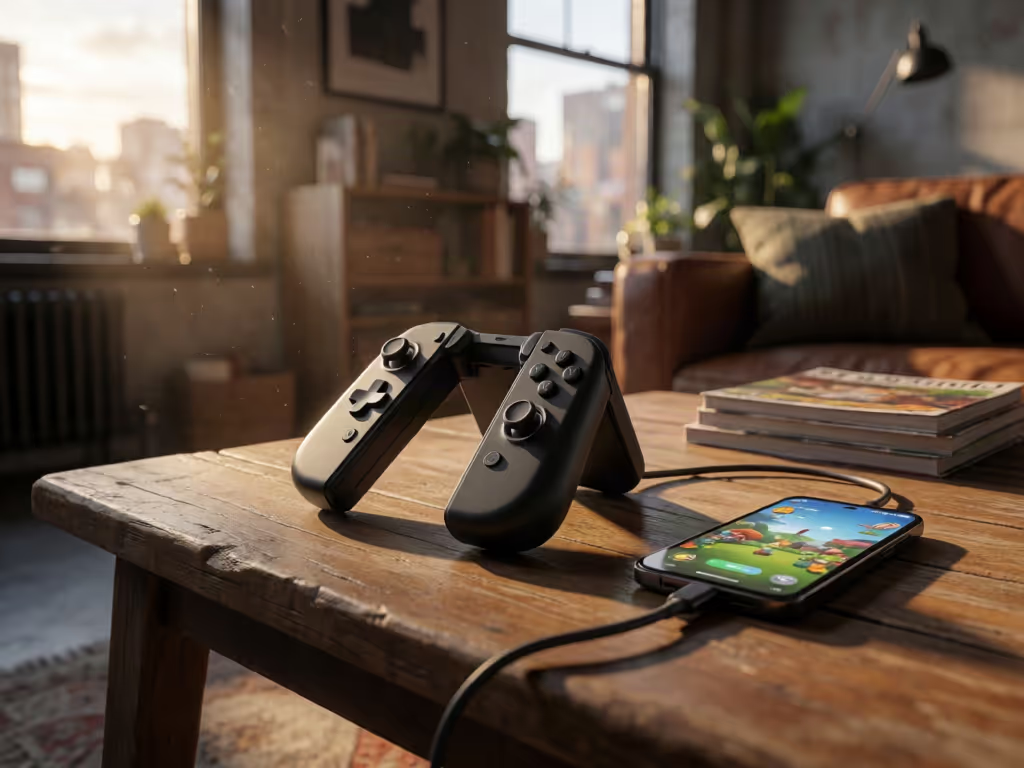
GuliKit lists the KK3 MAX for Windows, Nintendo Switch, Switch 2, Android, and iOS. That is the broadest confirmed coverage in this two-controller comparison. It makes the most sense for someone moving between PC and Switch regularly, or someone who wants one controller for several supported ecosystems. For help evaluating pairing steps, compatibility, and wireless response across devices, see our Bluetooth controller pairing and latency guide.
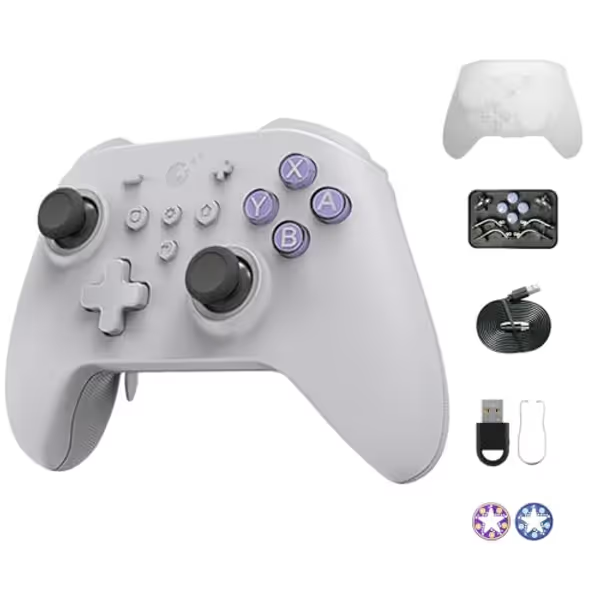
AKNES Gulikit KK3 MAX Controller
Versatile multi-platform controller with Hall effect sticks for precision gaming.
Polling Rate1000Hz (PC-Windows)
Polling Rate1000Hz (PC-Windows)
Pros
Drift-free Hall effect joysticks & triggers
Multi-platform compatibility (Switch, PC, Mobile)
Customizable vibrations & detachable paddles
Cons
Battery life varies significantly with RGB lights
Auto-Pilot Gaming records limited duration
The official feature set also includes four metal rear paddles that are detachable, swappable, and remappable. Its Smartrigger feature switches between analog and digital trigger modes, which gives you a clear setup choice: use analog-style trigger travel where gradual input matters, or digital mode where you prefer a more immediate press. GuliKit also advertises 1000Hz wired and wireless operation.
The retailer listing describes a 950mAh battery, claiming up to 28 hours with joystick lights off or up to 15 hours with low joystick lighting. Consider those retailer figures a starting expectation rather than a promise for every setup and use pattern.
8BitDo Ultimate 2C Wireless: the narrower, PC-first choice
The documented compatibility for the exact Ultimate 2C Wireless model is Windows 10 version 1903 or later and Android 9.0 or later. That is a sensible lane for a player who mainly wants a controller for PC games and occasionally plays on Android.
It is not the safe recommendation for a buyer who specifically needs Switch, Switch 2, iOS, Steam Deck, or macOS compatibility. Those platforms are not confirmed for this exact controller in the available documentation. In particular, do not buy it as a back button controller for Steam Deck based on an assumption that another controller in the broader product family supports it.
Step 3: Compare latency claims with test results, not just polling-rate labels
A 1000Hz label can be useful, but it should be the beginning of your research, not the conclusion. Higher polling rate does not automatically mean lower controller latency in the inputs you care about. Our wired versus wireless Xbox controller latency guide provides additional context on how connection methods affect responsiveness, reliability, and comfort.
What the available figures show
An independent comparison site reported these figures for the GuliKit KK3 MAX:
| Connection | Reported button latency | Reported stick latency |
|---|---|---|
| Cable | 5.4 ms | 33.9 ms |
| Dongle | 35.4 ms | 53.1 ms |
For the 8BitDo Ultimate 2C Wireless, the same site reported:
| Connection | Reported LatScore | Reported stick latency |
|---|---|---|
| Cable | 4.3 ms | 1.9 ms |
| Dongle | 5.5 ms | 4.1 ms |
It also reported a 14.1 ms Bluetooth LatScore for the Ultimate 2C Wireless.
These are useful directional results, and the reported cable and dongle stick-latency figures favor the 8BitDo. Still, keep the limitation beside the numbers: the comparison site says its module is in testing and that its data and conclusions may contain errors. The two tables also do not use identical metrics, LatScore is a weighted rating with a jitter penalty, so do not treat every number as a direct apples-to-apples measurement.
Practical latency verdict
- For Windows competitive play, the Ultimate 2C Wireless has the lower available reported cable and dongle stick-latency figures.
- For the KK3 MAX, its advertised 1000Hz wired/wireless operation should not be read as a guarantee of equally low stick response. Its reported stick figures were substantially higher, particularly through the dongle.
- For either controller, begin with a wired connection if you are troubleshooting delayed or inconsistent input. Then test the wireless mode you actually plan to use in the games you play.
This matters because "responsive enough" is personal. A player who mainly uses a D-pad or face buttons may focus on different inputs than a player who lives on the right stick in a shooter. Test the action that decides your matches, not only menu navigation.
Step 4: Pick the controller that serves your control layout
GuliKit KK3 MAX review: best fit for confirmed four-paddle, multi-console use
The KK3 MAX earns the recommendation for shoppers who want verified rear-paddle hardware and support across Windows, Switch/Switch 2, Android, and iOS. Four detachable metal paddles give you a more flexible rear-control layout than a controller with only two additional controls, and their swappable design lets you experiment without committing to one paddle shape.
Use it if your checklist looks like this:
- You move between PC and Switch and want one supported controller.
- You want four confirmed rear paddles rather than an ambiguous extra-button arrangement.
- You value analog/digital trigger switching for different genres.
- You are willing to prioritize platform breadth and rear-control flexibility over the lower available independent stick-latency figures.
Be mindful of the tradeoff: this is not the controller I would choose solely because it carries a 1000Hz claim. The available independent results give reason to test its connection modes carefully, especially if precise stick response is the entire point of your purchase.
8BitDo Ultimate 2C Wireless review: best fit for measured PC responsiveness
The Ultimate 2C Wireless is the better choice when Windows performance is your center of gravity and you want lower reported cable and dongle stick-latency figures. The retailer also describes extra L4/R4 bumpers with custom button mapping available without software, plus turbo functionality.
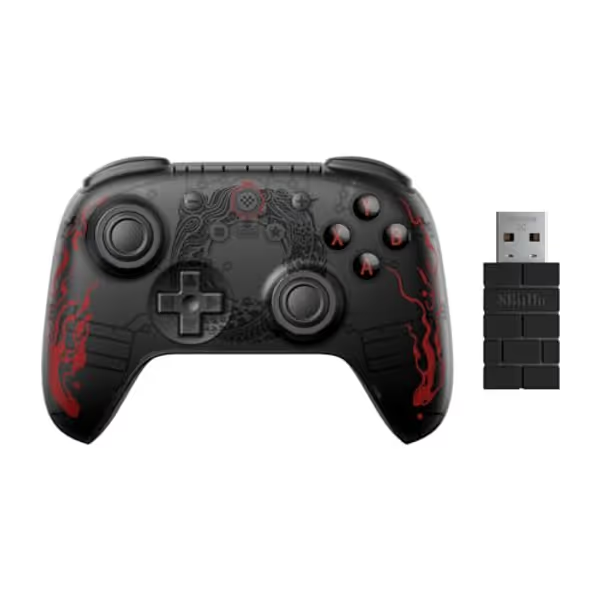
8Bitdo Ultimate 2C Wireless Controller
Precision control for Windows and Android with Hall Effect tech.
Joystick/Trigger TypeHall Effect
Joystick/Trigger TypeHall Effect
Pros
Eliminates stick drift with Hall Effect joysticks.
Customizable R4/L4 buttons for personalized play.
Broad compatibility with Windows and Android.
Cons
No customer review summary is available.
Its Hall Effect joysticks and Hall triggers are part of the listed feature set. To understand what Hall Effect sensors can—and cannot—do for drift prevention, read our Hall Effect controller explainer. Those are specifications, not proof of long-term durability; no collected evidence tests reliability, drift resistance over time, button feel, or real-world connection stability. It is fair to value the design, but do not turn it into a lifetime guarantee.
Choose the Ultimate 2C Wireless if:
- Your supported devices are Windows and Android.
- You want the lower available cable/dongle stick-latency figures in this comparison.
- You want remappable L4/R4 bumpers and do not specifically require confirmed rear paddles.
- You prefer to make performance the first filter and platform range the second.
Do not choose it solely on the assumption that L4/R4 will feel like rear paddles. The available sources label them "bumpers," while an independent comparison table lists no paddles. If rear placement is essential to your grip, inspect current product photos and retailer details before checkout.
Step 5: Set up your new controller without creating a hand-fatigue problem
A controller can have impressive features and still become a poor match when every secondary input demands a hard squeeze. I learned that after a month of grinding a new fighter left my hand numb enough to be alarming; reducing activation effort and changing the grip changed far more than comfort. It changed execution.
Start gently and make the setup earn its place.
Your first-session setup plan
- Use one connection mode first. For PC testing, start wired, then test the dongle or Bluetooth mode separately. Change only one variable at a time.
- Map high-frequency actions thoughtfully. Put an action on a rear paddle only if it genuinely prevents an awkward thumb movement. Avoid mapping an accidental-press action there on day one.
- Use the lightest reliable finger pressure. Back controls should be actuated with a deliberate tap, not a constant death grip.
- Keep wrists close to neutral. Rest forearms when possible and avoid holding the controller far below your lap, which often increases wrist bend.
- Check for accidental presses over a full session. A mapping that works in a test range may fail when your grip tightens during a tense match.
- Stop at warning signs. Tingling, numbness, aching that lingers, or a noticeable loss of control means the setup needs changing. Consider a qualified clinician for symptoms that persist or concern you.
Neither controller has collected evidence here for ergonomic testing, hand-size fit, or long-session comfort. So avoid treating any marketing description as a verdict on your anatomy. Your own fit check is more useful than a spec sheet in this category. For broader advice on choosing a comfortable controller and avoiding strain during long sessions, see our ergonomic game controller guide.
Step 6: Make the final call
Here is the straightforward buying decision:
| Your priority | Better choice | Why |
|---|---|---|
| Confirmed back paddles and broad supported platforms | GuliKit KK3 MAX | Four detachable, swappable, remappable metal rear paddles; manufacturer-listed Windows, Switch/Switch 2, Android, and iOS support. |
| Lower reported cable and dongle stick latency for PC | 8BitDo Ultimate 2C Wireless | Lower reported cable and dongle stick-latency figures in the available independent comparison. |
| A controller for PC and Switch | GuliKit KK3 MAX | Both platforms are manufacturer-listed for this model. |
| A controller for Windows and Android | 8BitDo Ultimate 2C Wireless | Both are documented for this exact model. |
| Four configurable rear inputs | GuliKit KK3 MAX | Four real rear paddles are specifically confirmed. |
FAQ
What controller has back buttons?
Of these two, the GuliKit KK3 MAX is the confirmed answer: it has four detachable, swappable, remappable metal rear paddles. The 8BitDo Ultimate 2C Wireless has remappable L4/R4 bumpers, but the available information does not confirm they are back-mounted controls.
Is a 1000Hz controller automatically lag-free?
No. A polling-rate claim is not an end-to-end latency guarantee. In the available independent data, the 8BitDo had lower reported cable and dongle stick-latency figures, while the KK3 MAX's reported stick latency was notably higher than its advertised 1000Hz label might lead some buyers to expect. Treat polling rate as one specification, then look for connection-specific measurements and test in your own games.
Which is the best multi console controller here?
For confirmed multi-console and mobile coverage, choose the GuliKit KK3 MAX. Its manufacturer lists Windows, Switch, Switch 2, Android, and iOS. The Ultimate 2C Wireless is better described as a Windows/Android controller based on the documentation available for this exact model.
Your next step
Write down your two primary platforms, your one must-map action, and whether you need four true rear paddles. If the answer includes Switch or Switch 2 and confirmed rear paddles, start with the GuliKit KK3 MAX. If your world is Windows/Android and lower reported stick-latency figures matter more than confirmed rear placement, start with the 8BitDo Ultimate 2C Wireless. Then give yourself a week of short, deliberate sessions to validate grip, mappings, and connection mode, because the best controller is the one that lets your hands stay calm while your decisions stay fast.
Related Articles